
Standard Operating Procedures
How to Operate the System
A step-by-step guide to navigating and using the HCL Notes software for daily front desk operations. Learn the basics, shortcuts, and essential tools needed to manage guest records efficiently.
Individual
Group
Open System Software
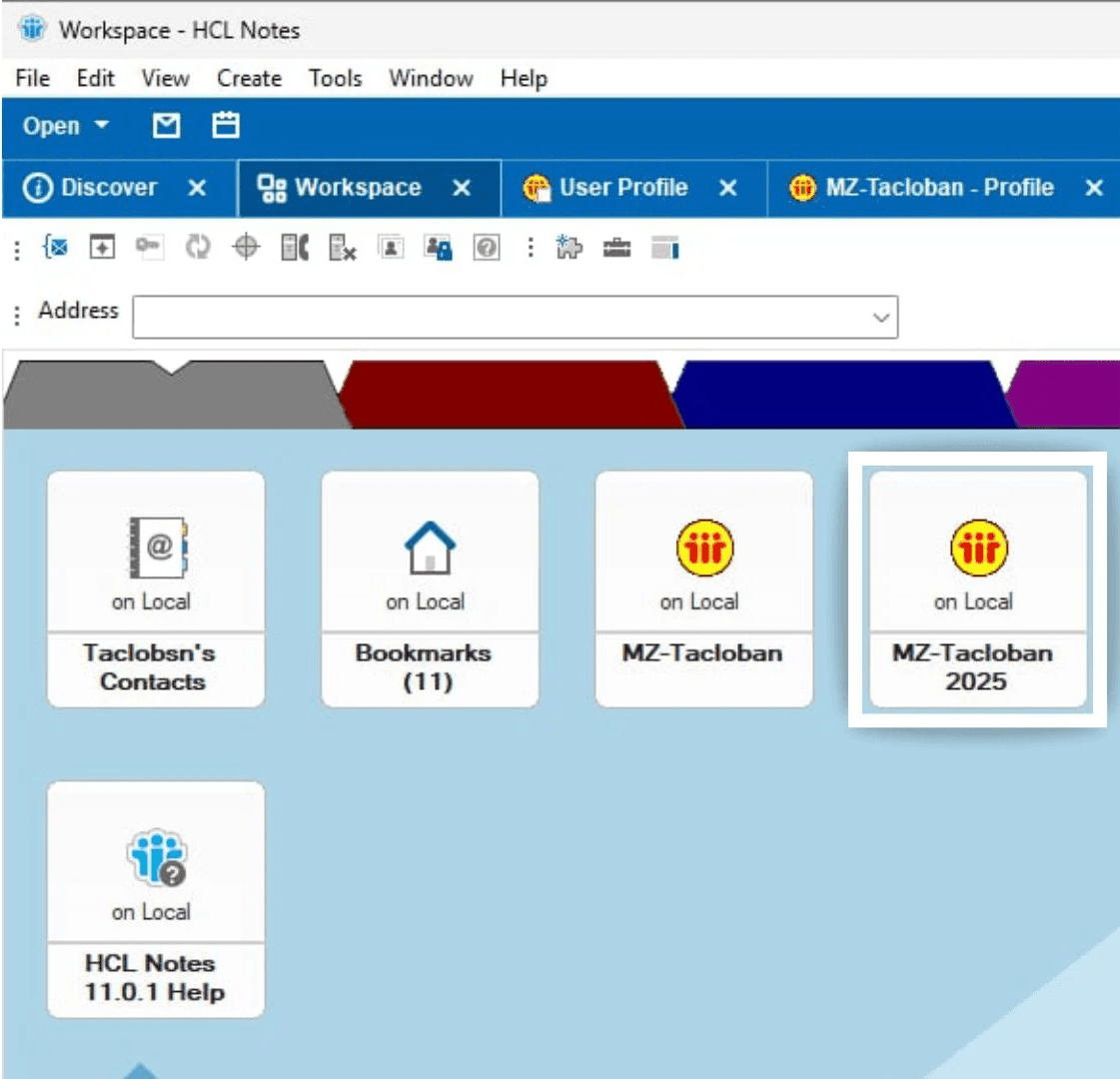
Double Click MZ-Tacloban 2025
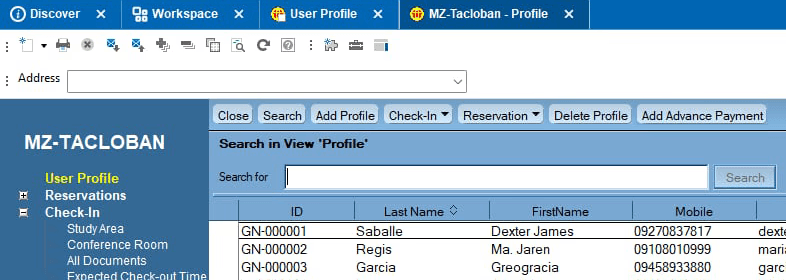
User Profile
Navigate through this section to learn the functions of each button in the user profile window.
New Guest
Create a new guest profile and enter their basic details in the system.
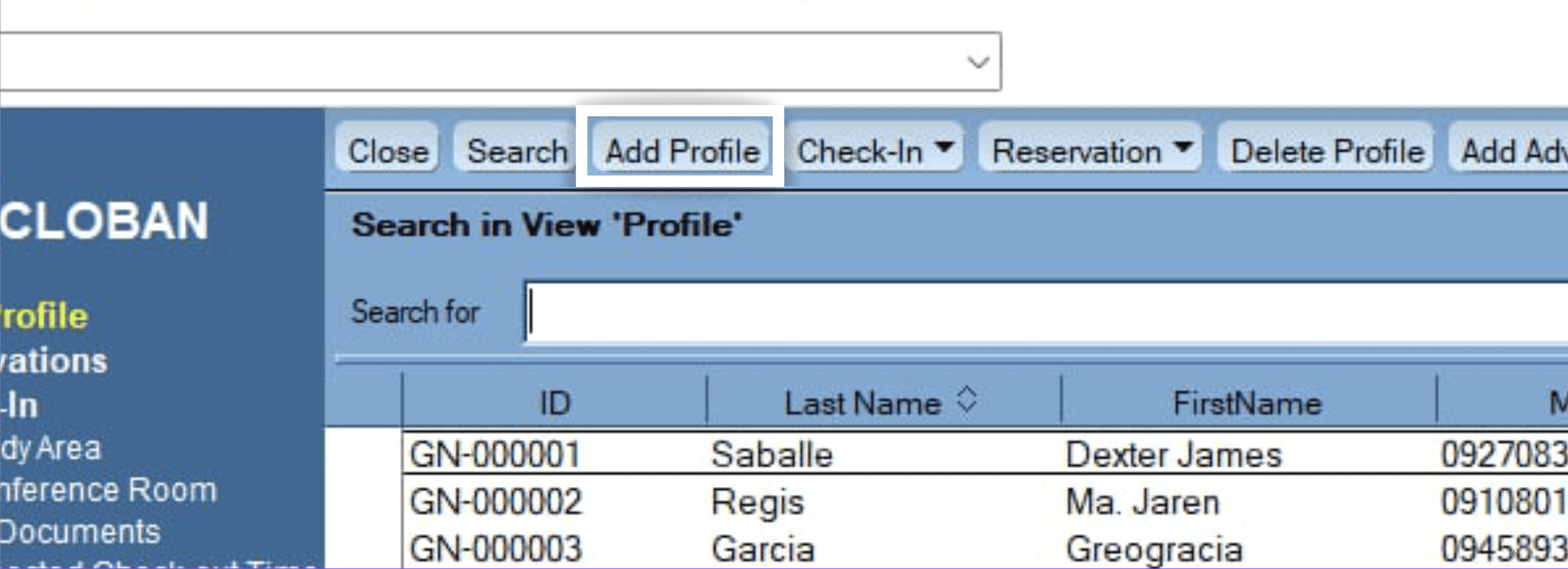
Step 1
Click Add Profile
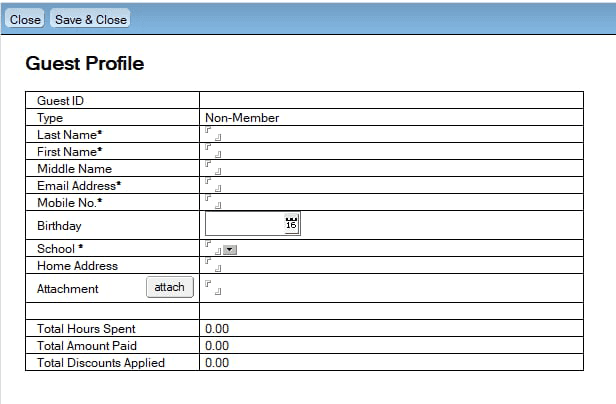
Step 2
Input guest profile details
Check-in
Access the check-in page to register arriving guests and start their session.
Check-in New Guests
Register first-time guests and check them in for their chosen plan.
For New Guests, Add Profile first.
Add Profile tutorial
Check In Repeat Guest
Search for an existing guest profile and proceed with check-in.

Step 1
Search for their profile
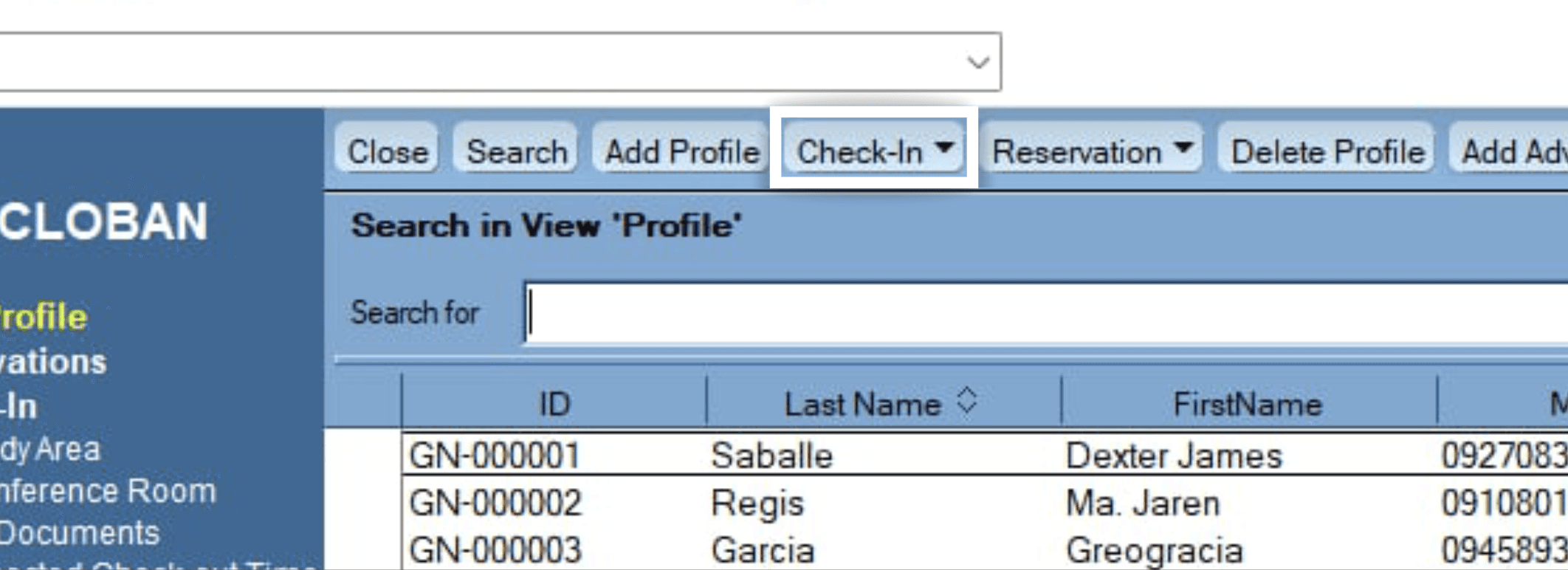
Step 2
Click Reservation to see Options: Study Area or Cerebroom
Check in Individual Guest (Common Area)
Check in a single guest using the common area seating options.
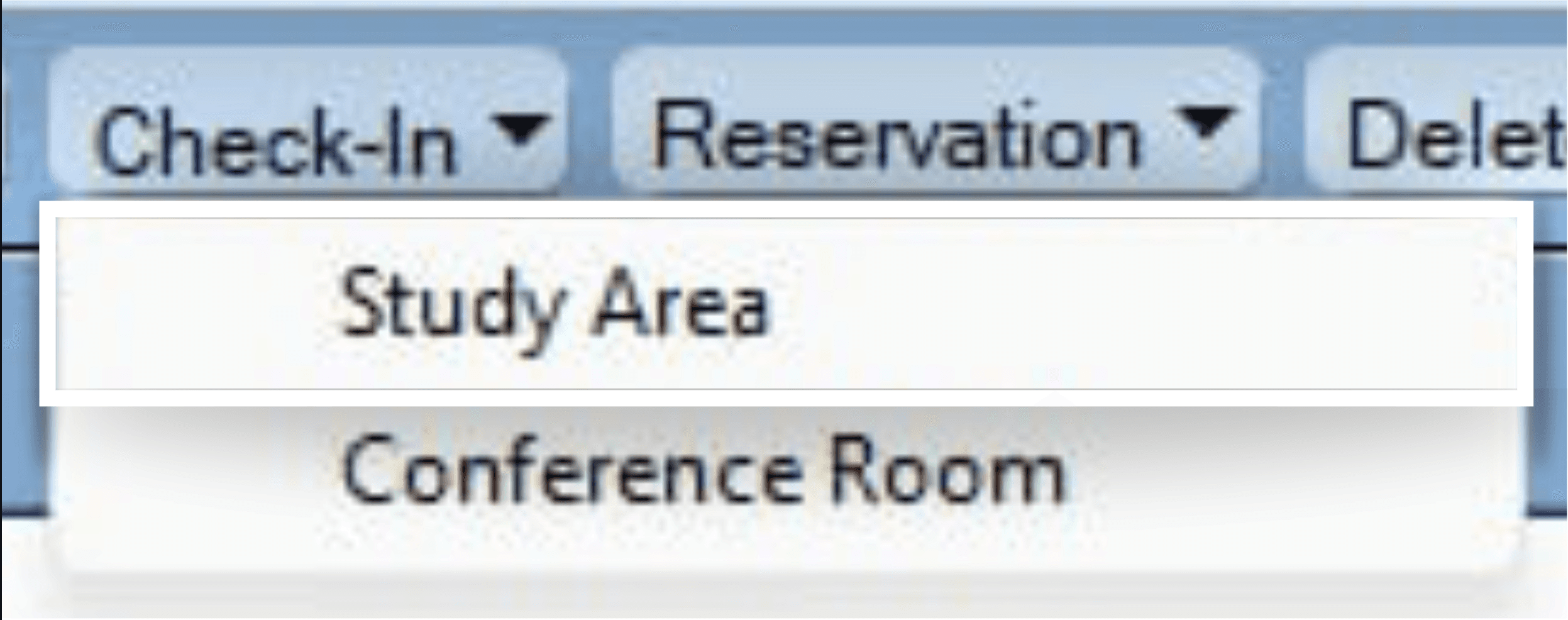
Step 1
Choose Study Area to check-in individual profile
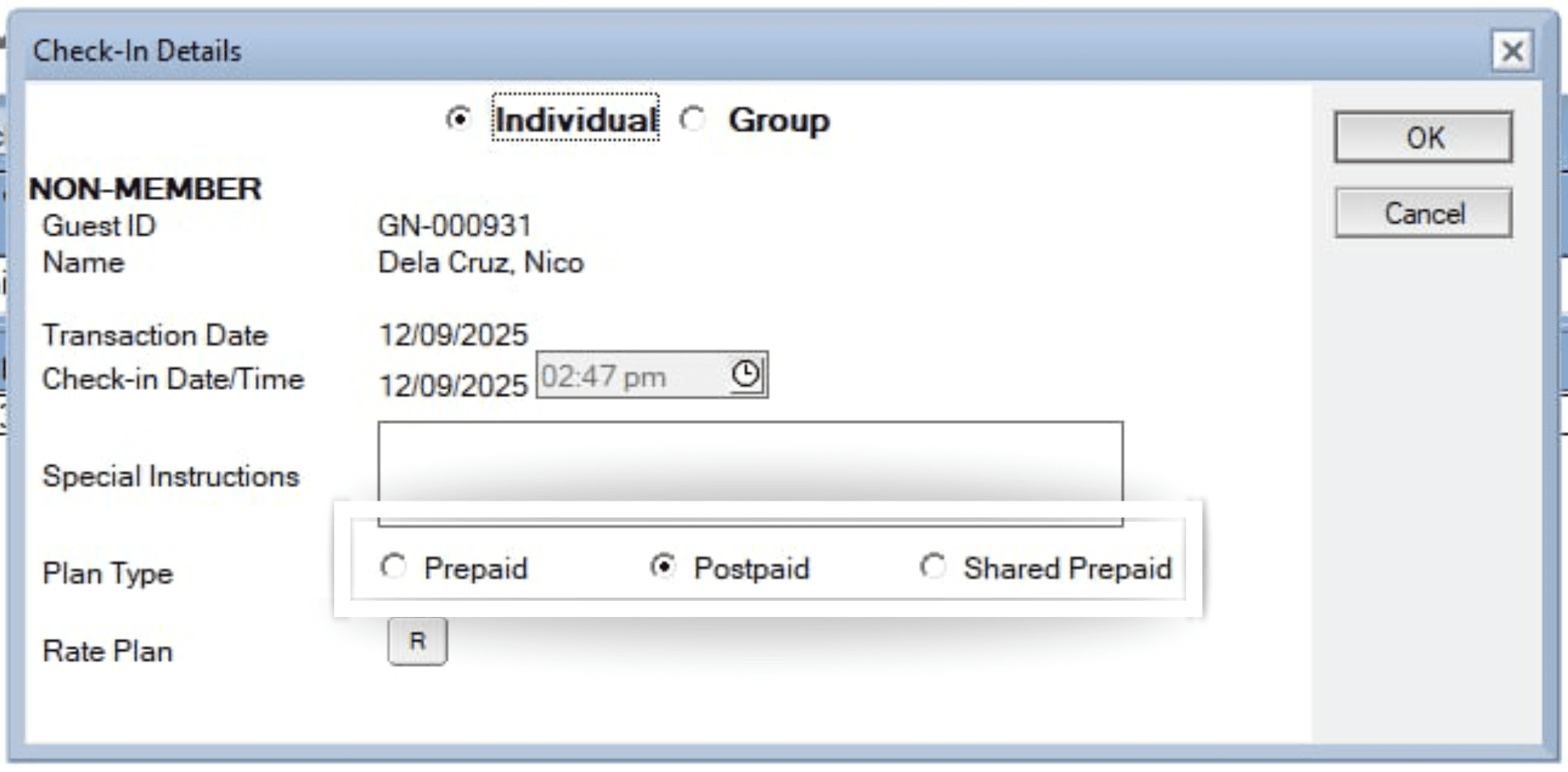
Step 2
Choose Plan Type (Prepaid, Postpaid, or Shared Prepaid)
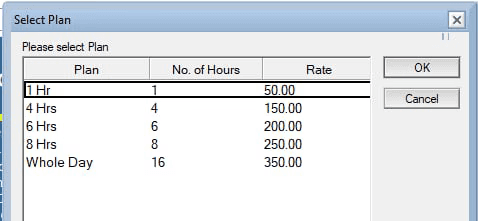
Step 3
Choose preferred Rate Plan, then click OK.
Check in Group (CerebRoom)
Register and check in a group reservation for a CerebRoom session.
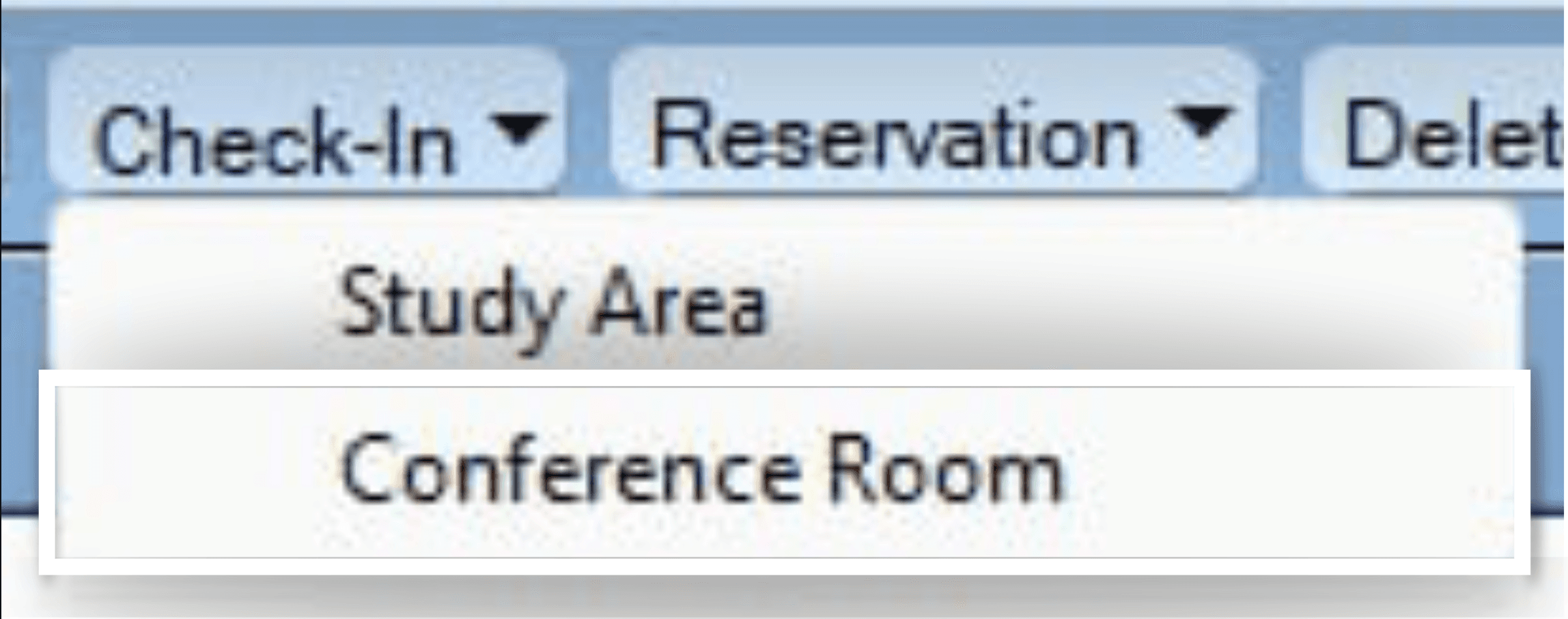
Step 1
Choose Cerebroom to check in group
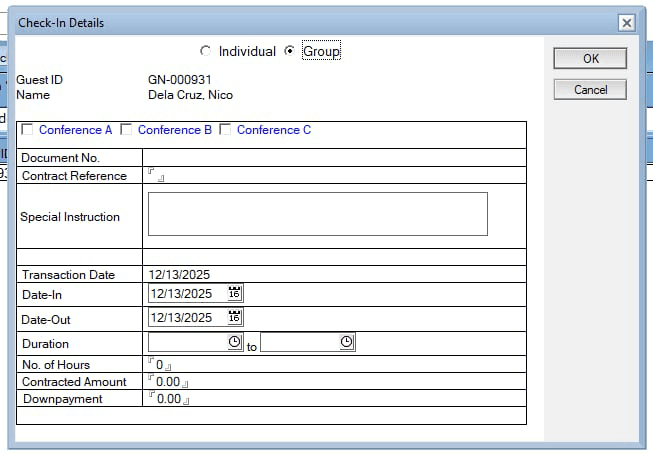
Input details for CerebRoom Check in
Check in Guest with Reservation (Common Area)
Locate the reservation and complete the check-in for common area seating.
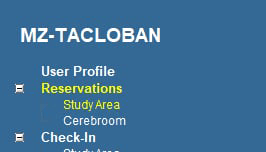
Step 1
Go to Reservations page
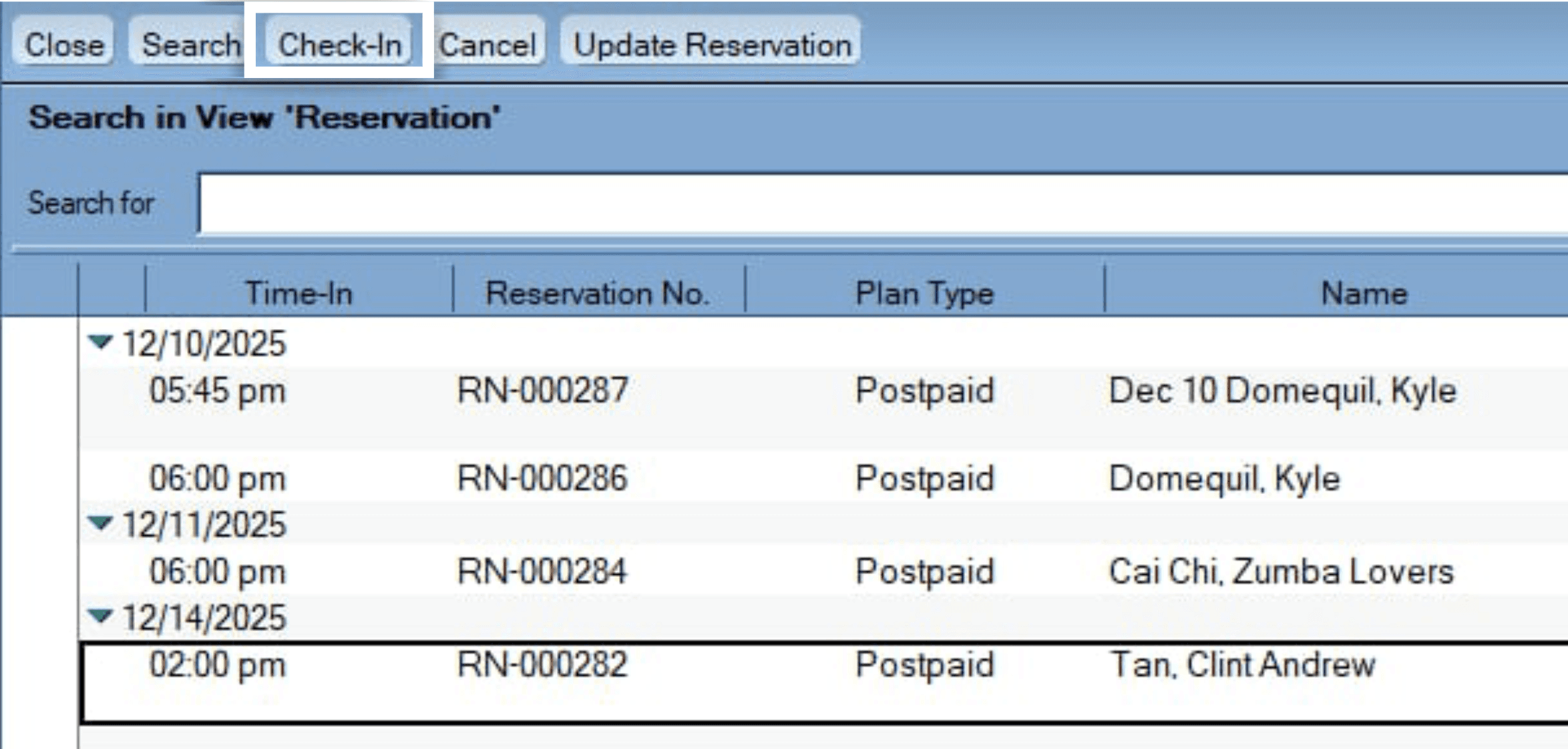
Step 2
Select guest profile, then click Check-In
Step 6
Check if all details are correct, or if there is anything to change.
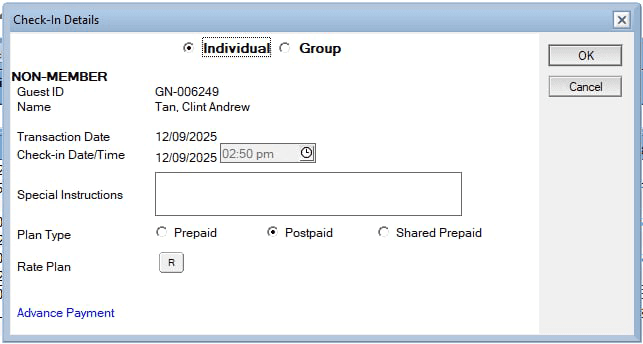
Common Area Reservation
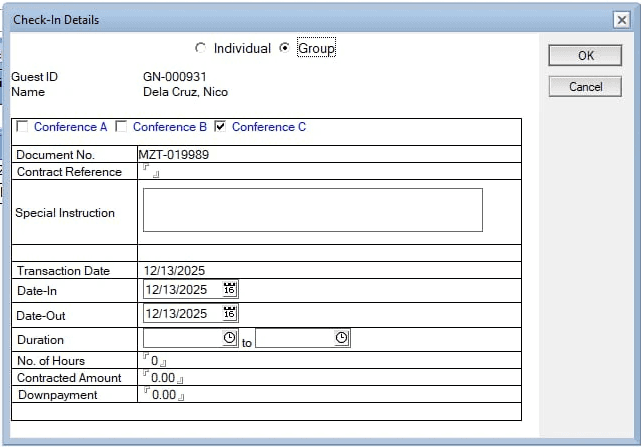
CerebRoom Reservation
Click OK to check in.
Reserve Group for Events (Common Area)
Create and manage reservations for group events held in the common area.
For New Guests, Add Profile first.
Add Profile tutorial
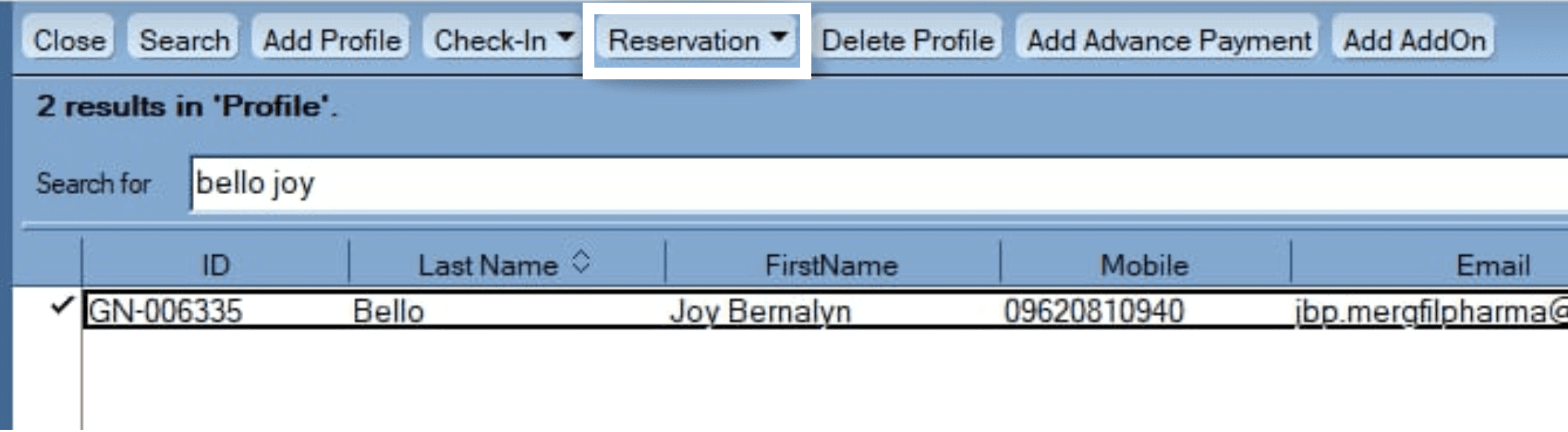
Step 2
Search guest profile, then click Reservation
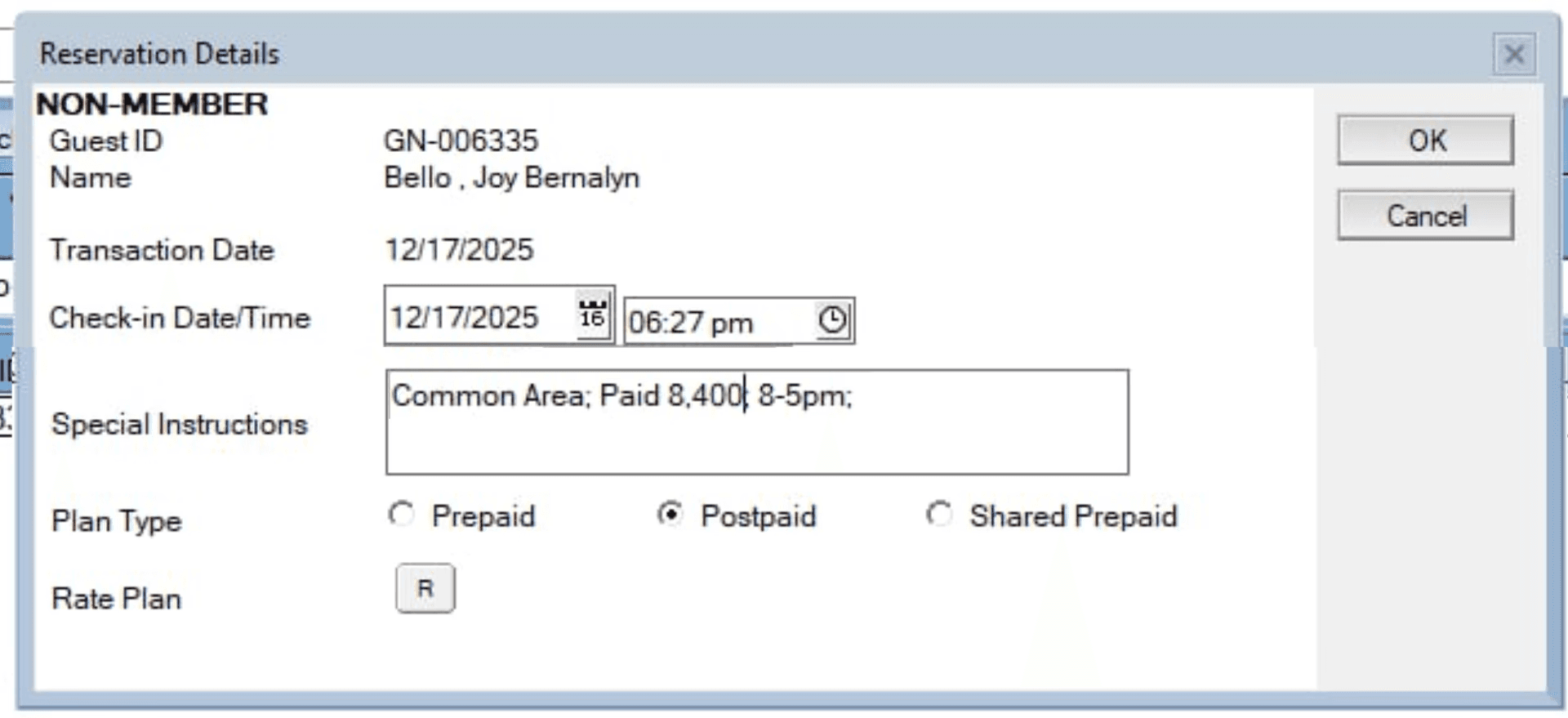
Step 1
Input Reservation details, add event details to the special instructions. Click OK.
Check-in Group for Events (Common Area)
Check in the group upon arrival and activate their event session.
This follows the same process as checking in individual guests.
How to Check-in Individual Guests
Check-out Group for Events (Common Area)
Finalize the event, process payments, and complete the group check-out.
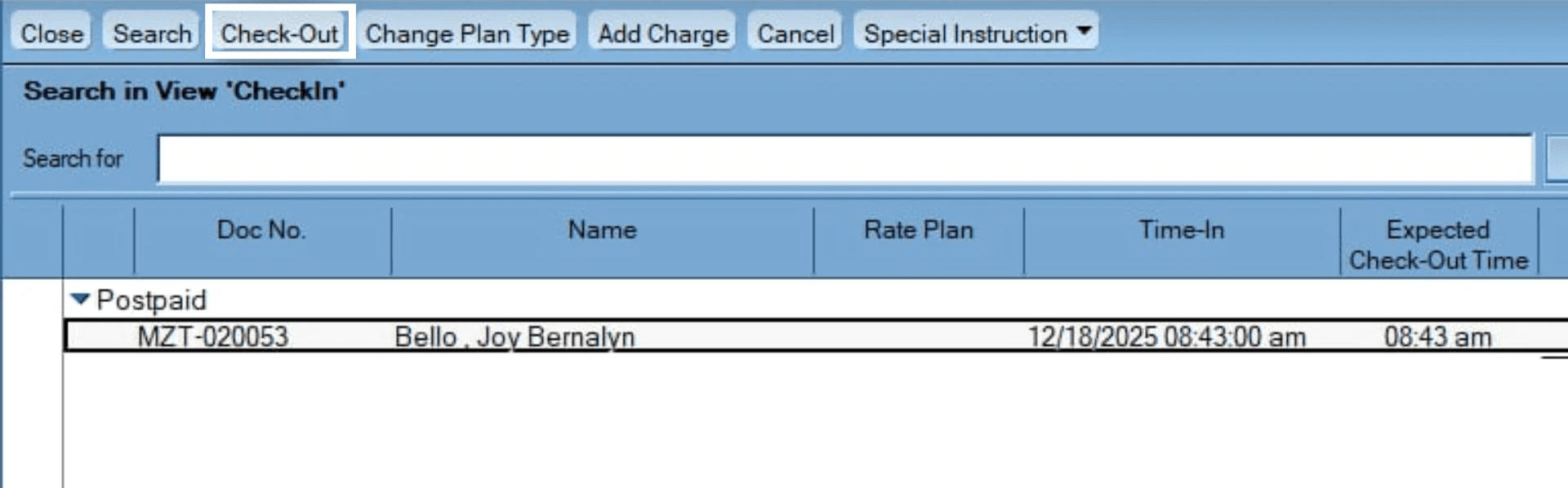
Step 2
On Check in page, click guest profile, then click Check-Out
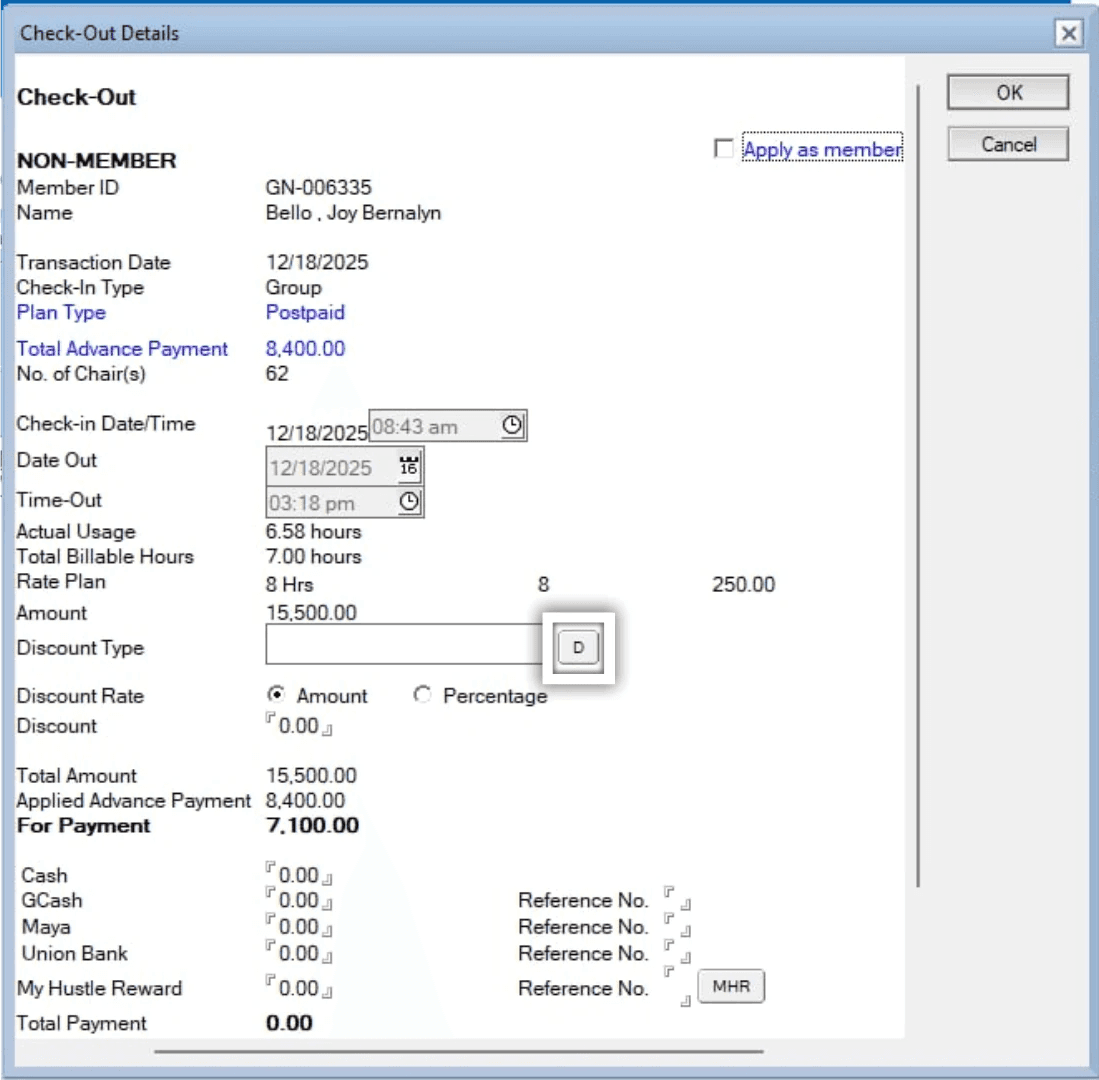
Step 1
Click D button under Discount Type
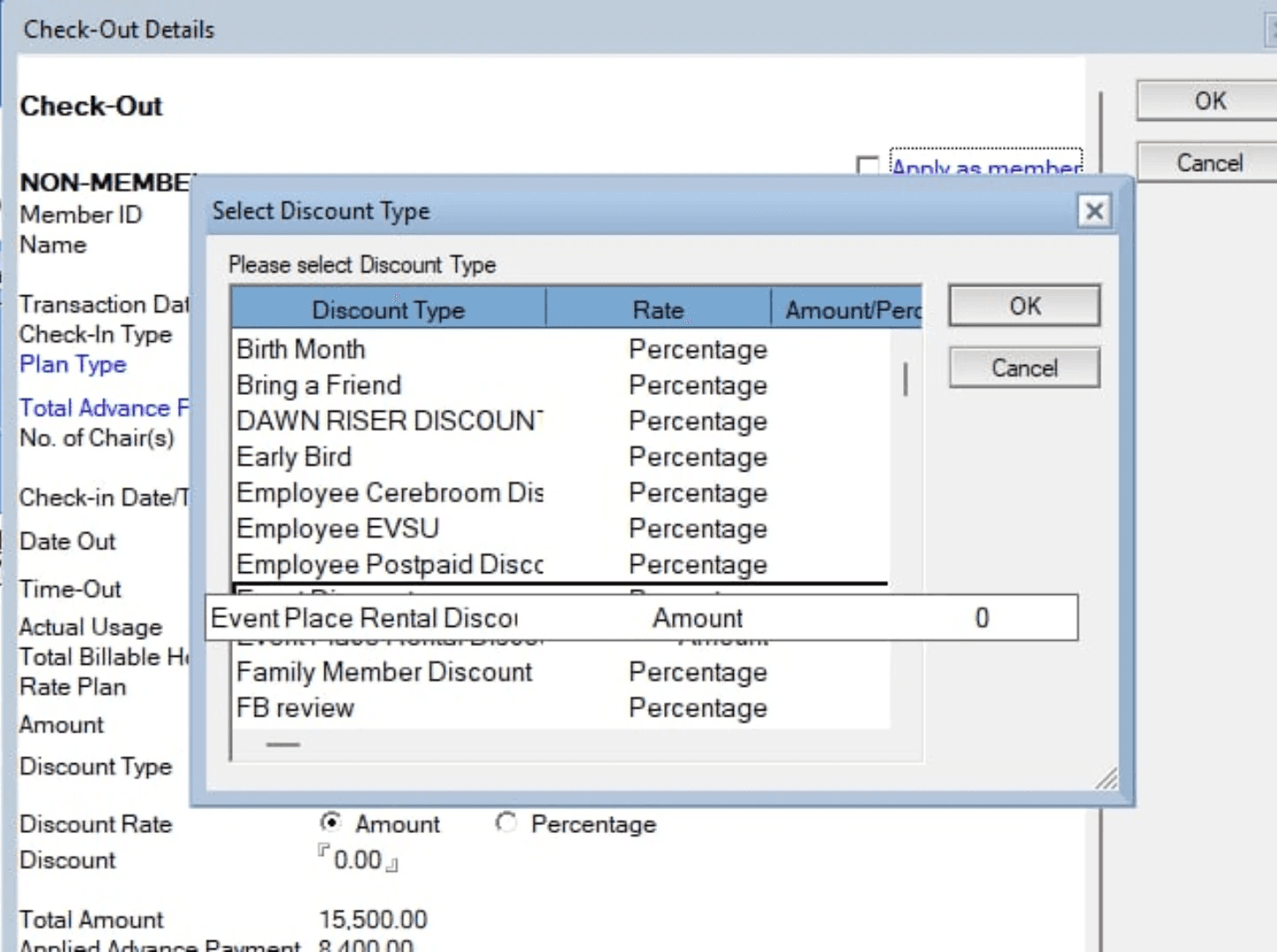
Step 1
Click Event Place Rental Discount
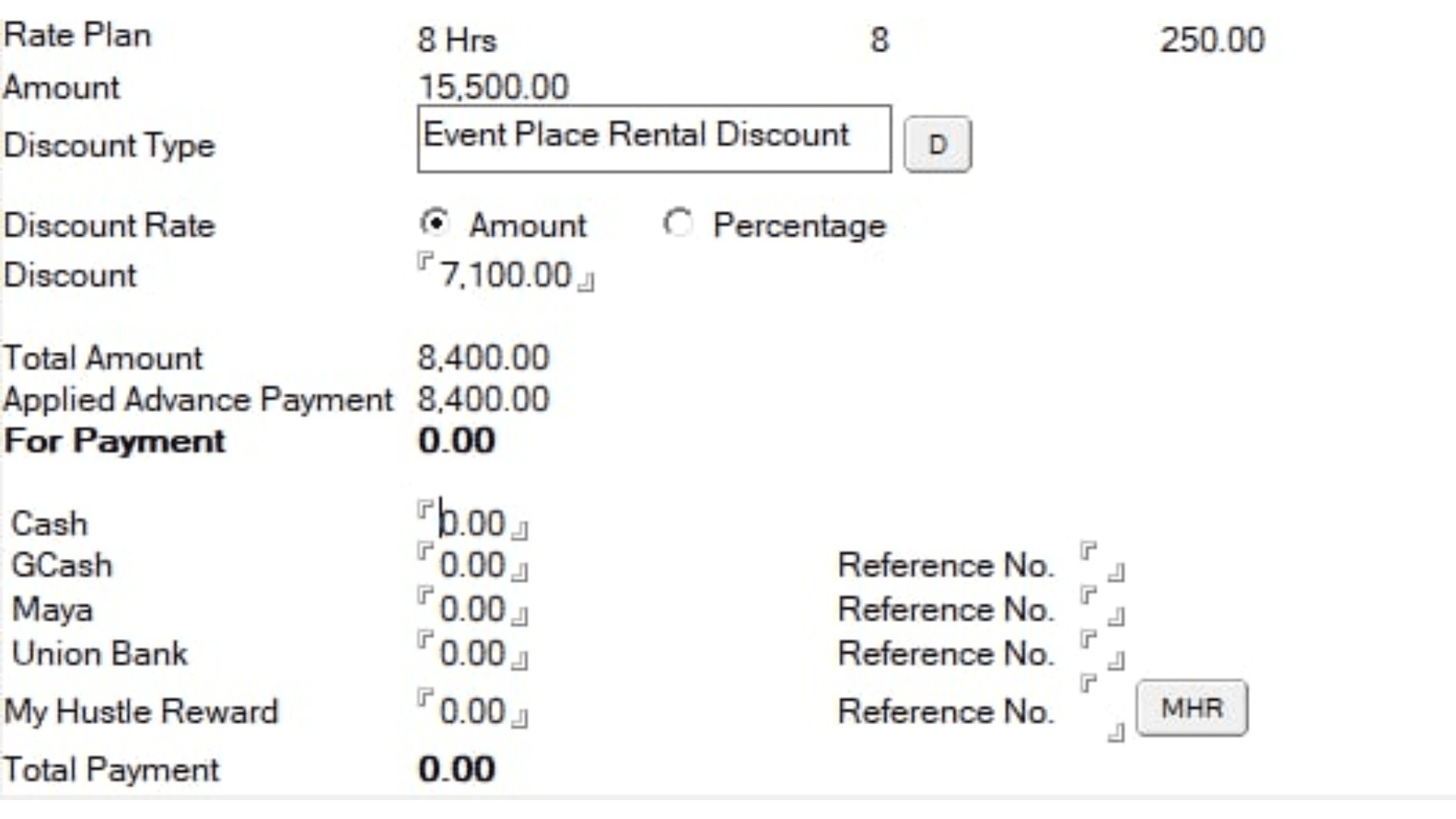
Step 1
Since guests availing discounted rates are required to pay 50% downpayment before check-in, the amount to be paid at check-out should reflect only their remaining balance (or ₱0 if already fully paid).
To ensure this is properly reflected in the system, follow the steps below:
How to Compute the Discount Amount in the System
Take the Total Amount shown in the system (regular rate).

Subtract the amount already paid by the guest.
The result is the discount amount that should be entered in the Discount section (make sure to click “Amount”, not percentage).
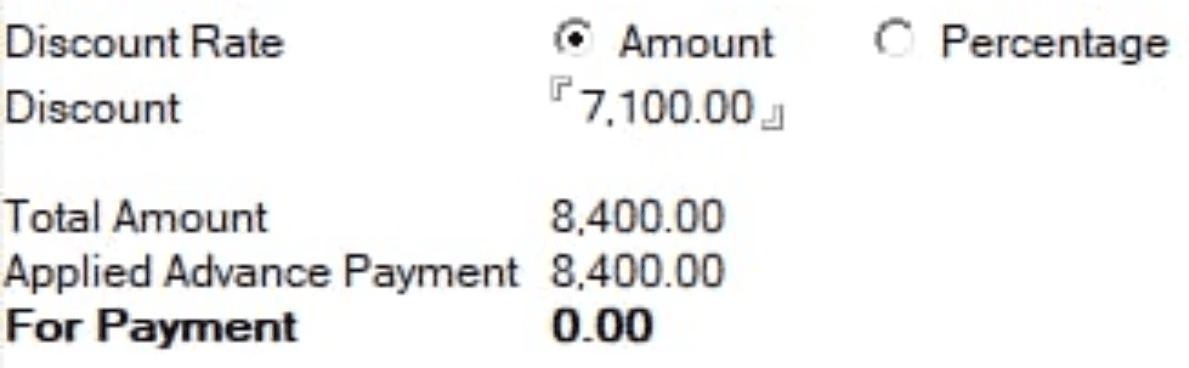
Example:
Total Amount (TA) (system): ₱15,500
Discounted Rate (DR) : ₱8,400
Amount Already Paid (If 50% DP): ₱4,500 (DP)
(If advanced full payment): ₱8,400 (FP)Remaining Balance (RB) (If 50% DP): ₱4,500
(If advanced full payment): ₱0
Computation:
Formula: TA - FP = Discount
₱15,000 − ₱8,400 = ₱7,100
The result is the amount to be entered in the Discount field. Make sure to click Amount first.
Once applied, the system will deduct it from the total, and the For Payment amount will correctly show the guest’s remaining balance. If they have already paid in advance, the system will automatically deduct their advance payment.
Double check the info then click OK.
Reservations Panel
Where to view, update, and manage all reservation entries.
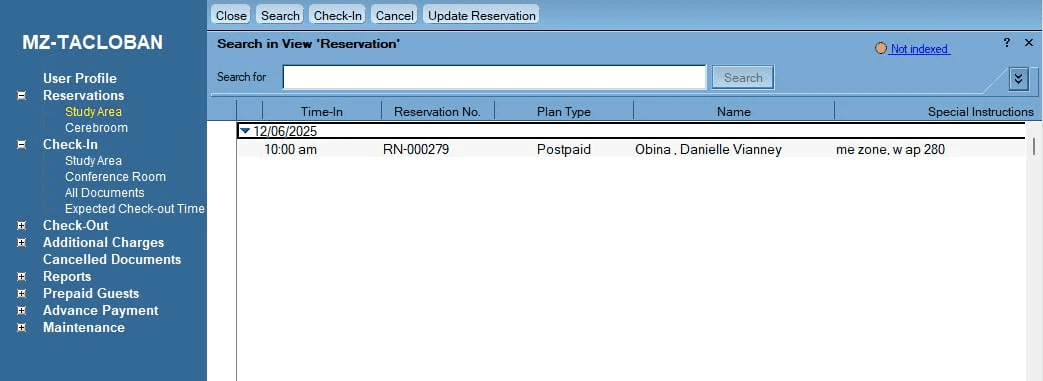
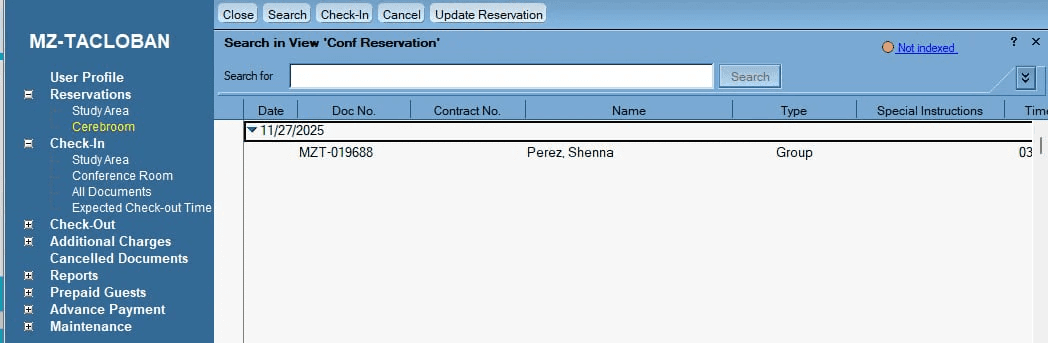
Reservations Tutorial
How to book individual seats and confirm guest reservations in the system.
Step 1
For New Guests, Add Profile first. For repeat guests, proceed to step 2.
Add Profile tutorial
Reserve Repeat Guest
Create a reservation using an existing guest profile.
Step 1
Search for their profile
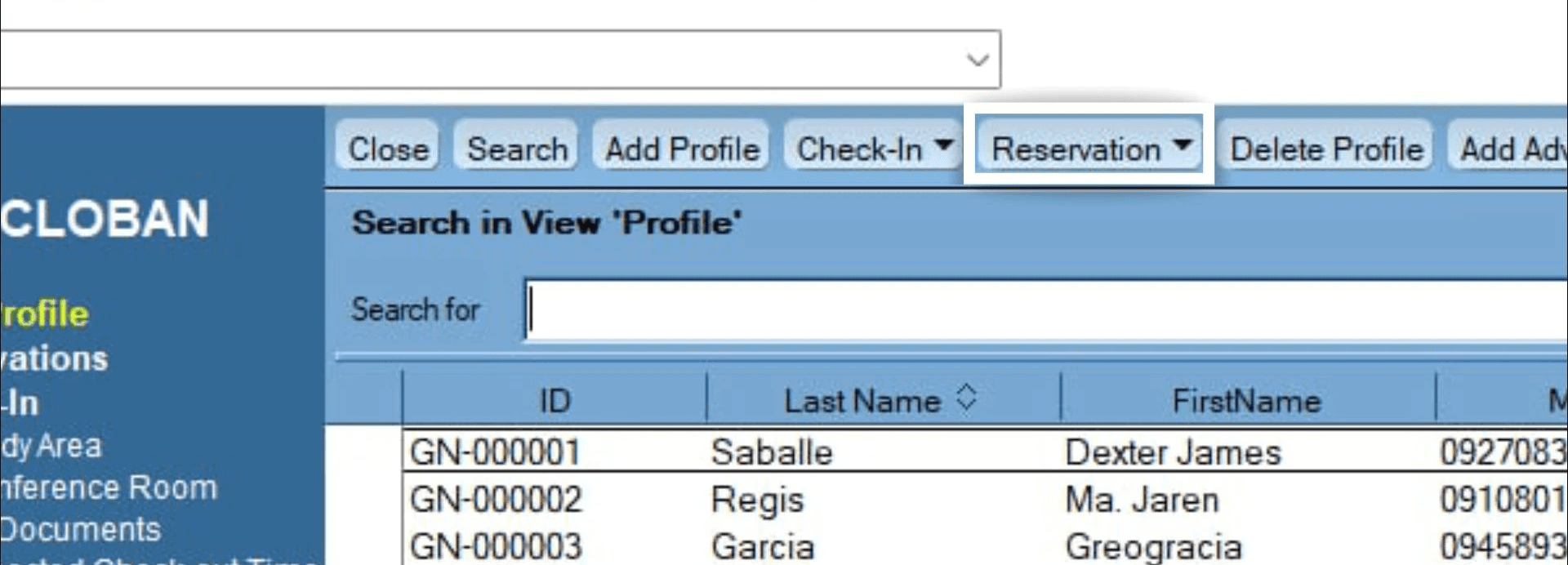
Step 2
Click Reservation to see Options: Study Area or Cerebroom
Reserve Individual Guest
Set up a reservation for an individual guest and save the booking details.
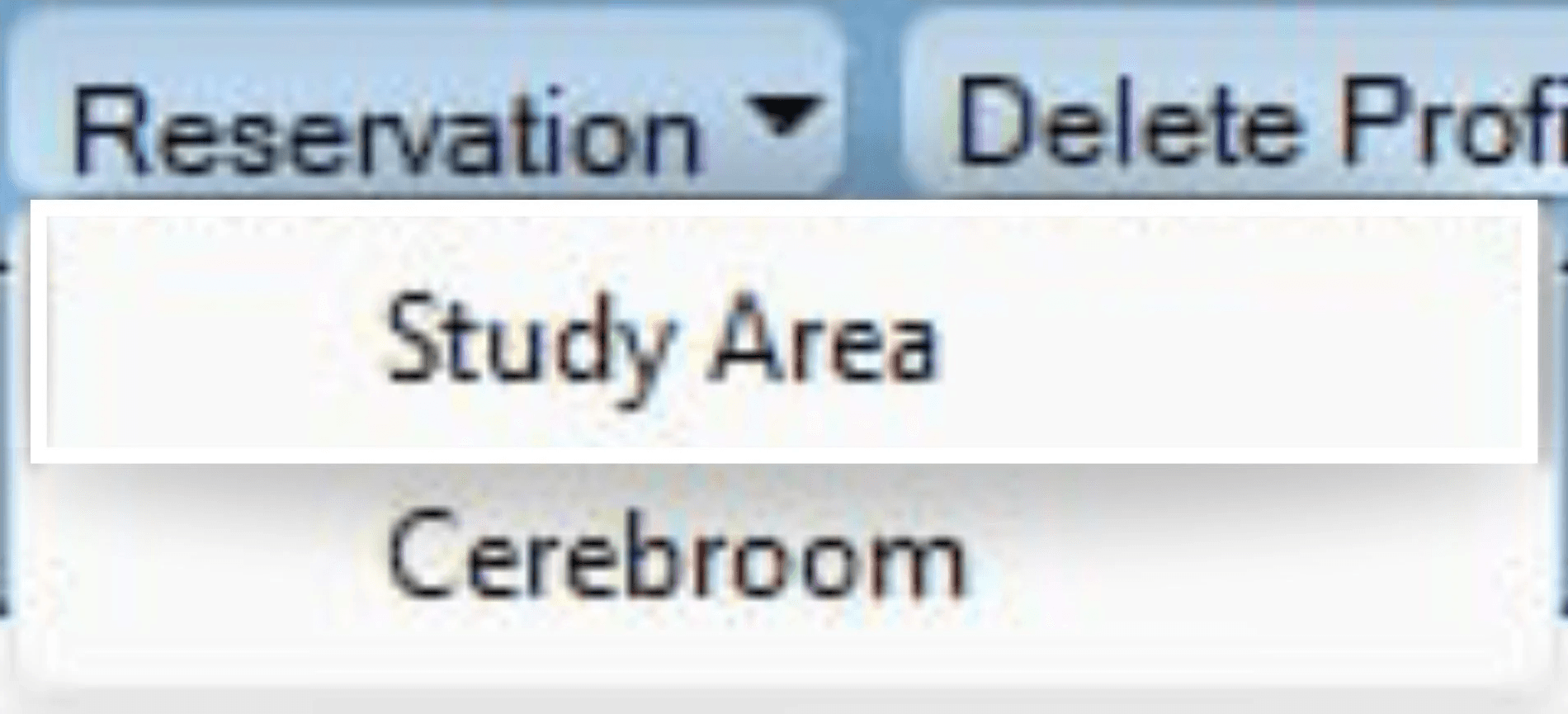
Step 1
Choose Study Area to reserve individual profile
Step 2
Choose preferred Rate Plan, then click OK.
Reserve Group (CerebRoom)
Steps to reserve discussion rooms for groups and record booking details.
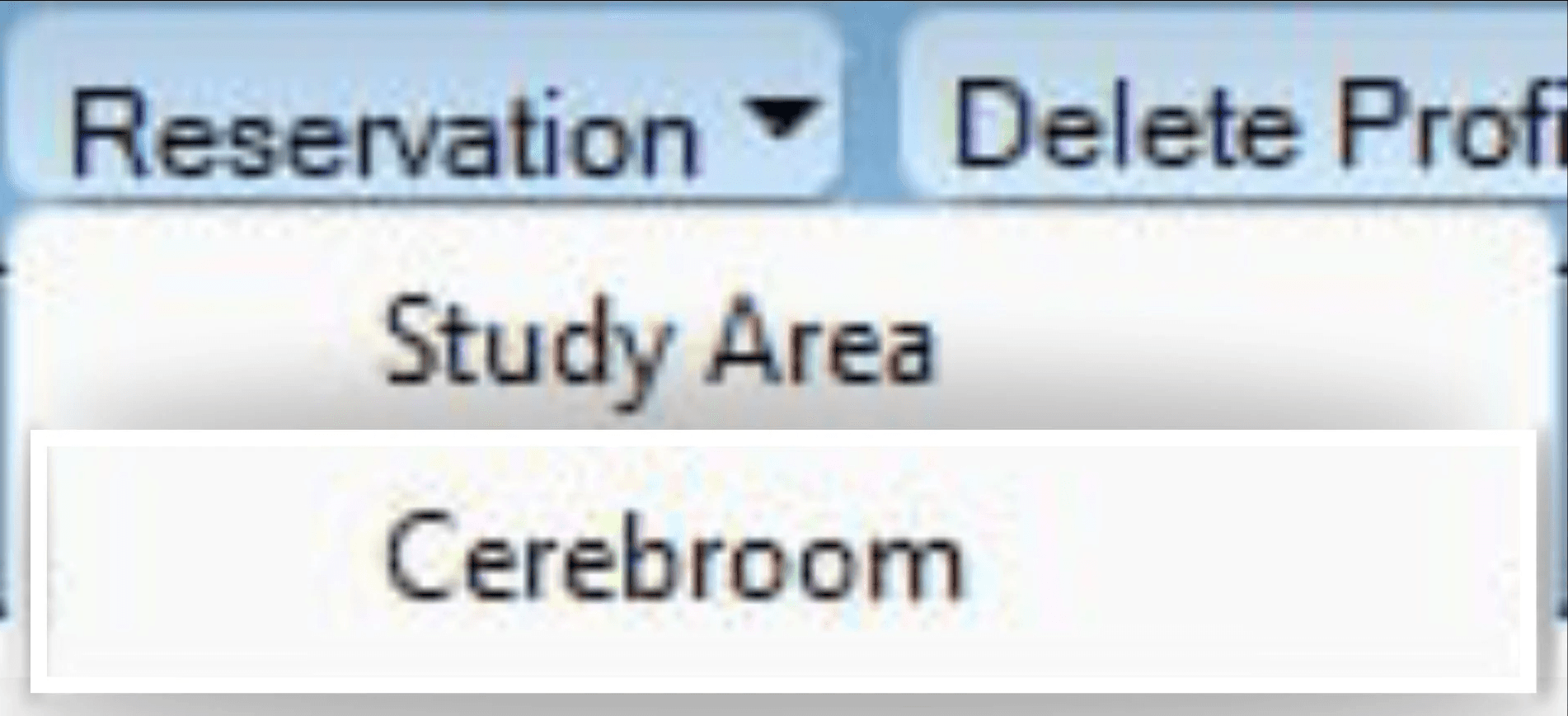
Step 1
Choose Cerebroom to reserve group
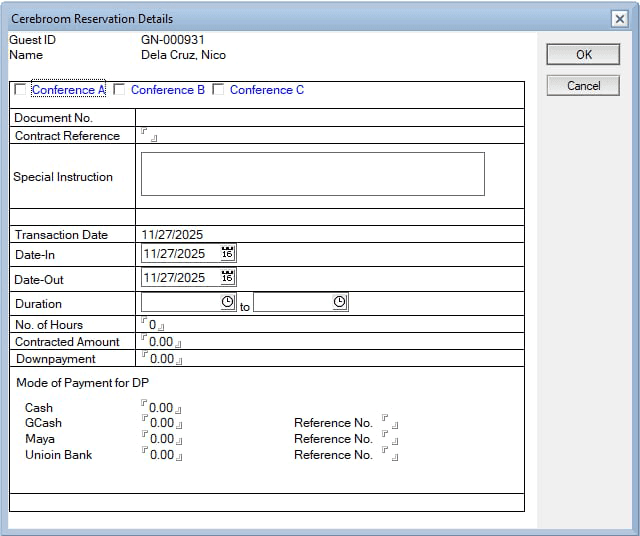
Input details for reservation
Edit Reservation
Steps to reserve discussion rooms for groups and record booking details.
Step 1
Choose Cerebroom to reserve group
Input details for reservation
Advance Payment
When the guest already settled their payment before they check in, record their payment in Advance Payment.
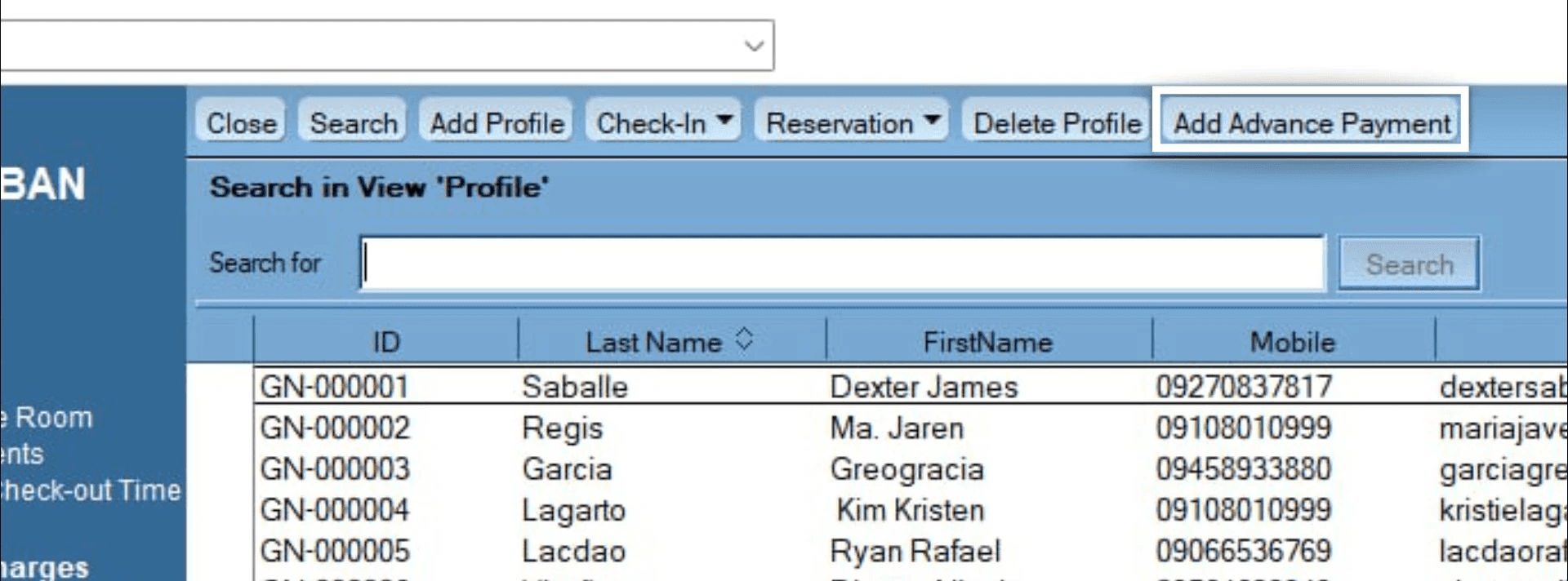
Step 1
Click Add Advance Payment
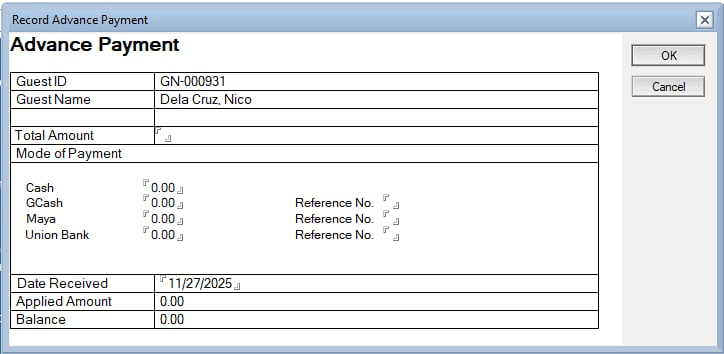
Click through to see what to input in the Record Advance Payment window.
Check Out
Process guest check-outs and ensure accurate billing and recording.
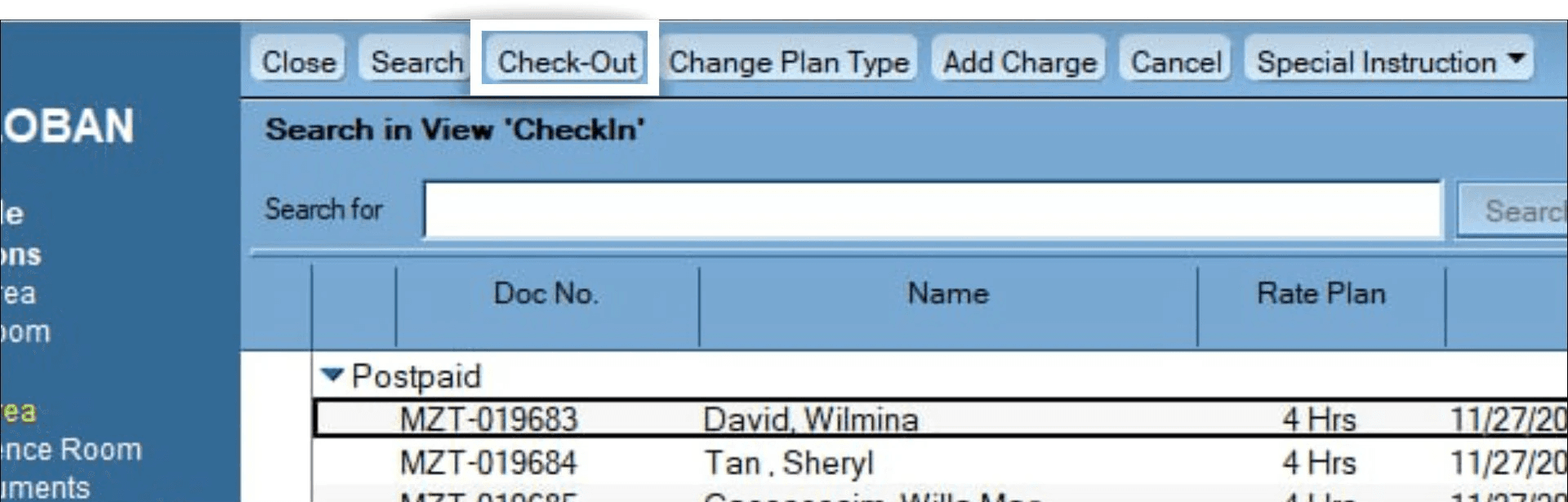
Step 1
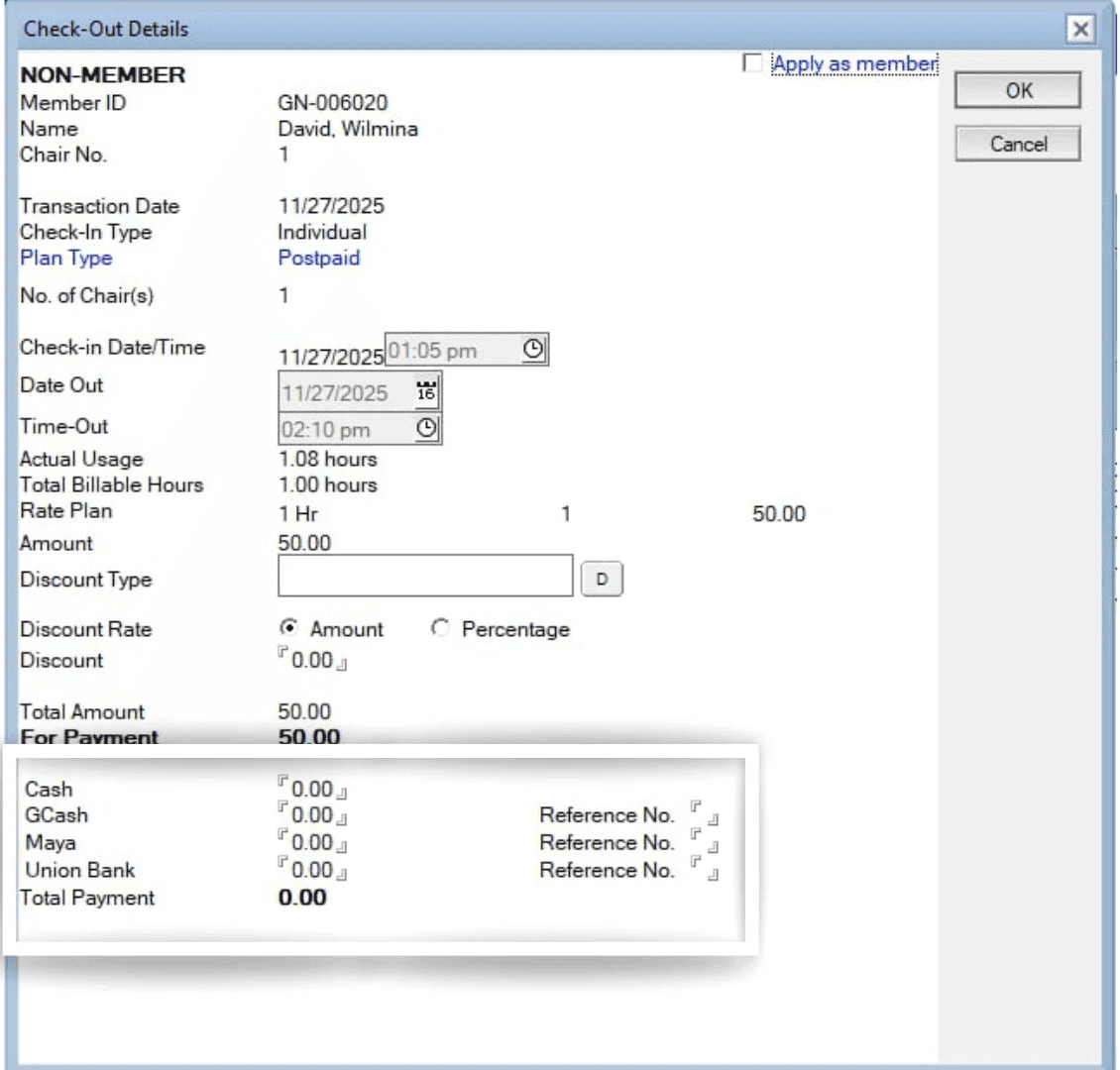
Step 2
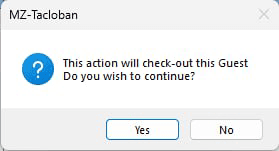
Step 3
Once done, click yes to check out.
Generate EOD Report
Create the End-of-Day report to finalize and verify daily transactions.
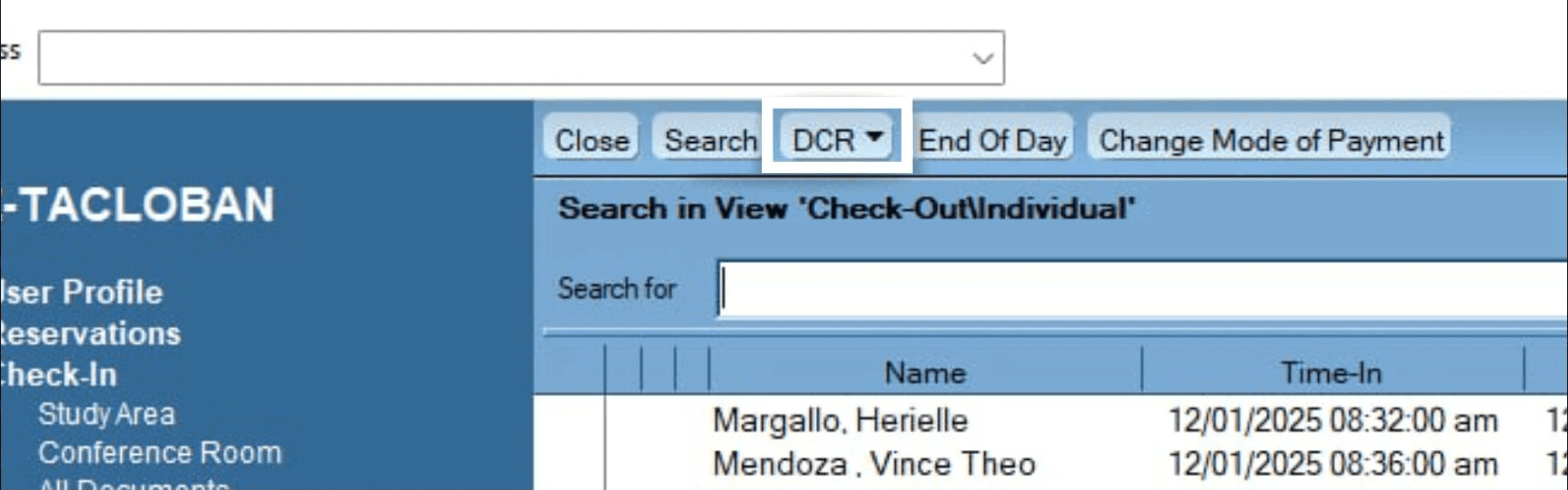
Step 1
Click DCR
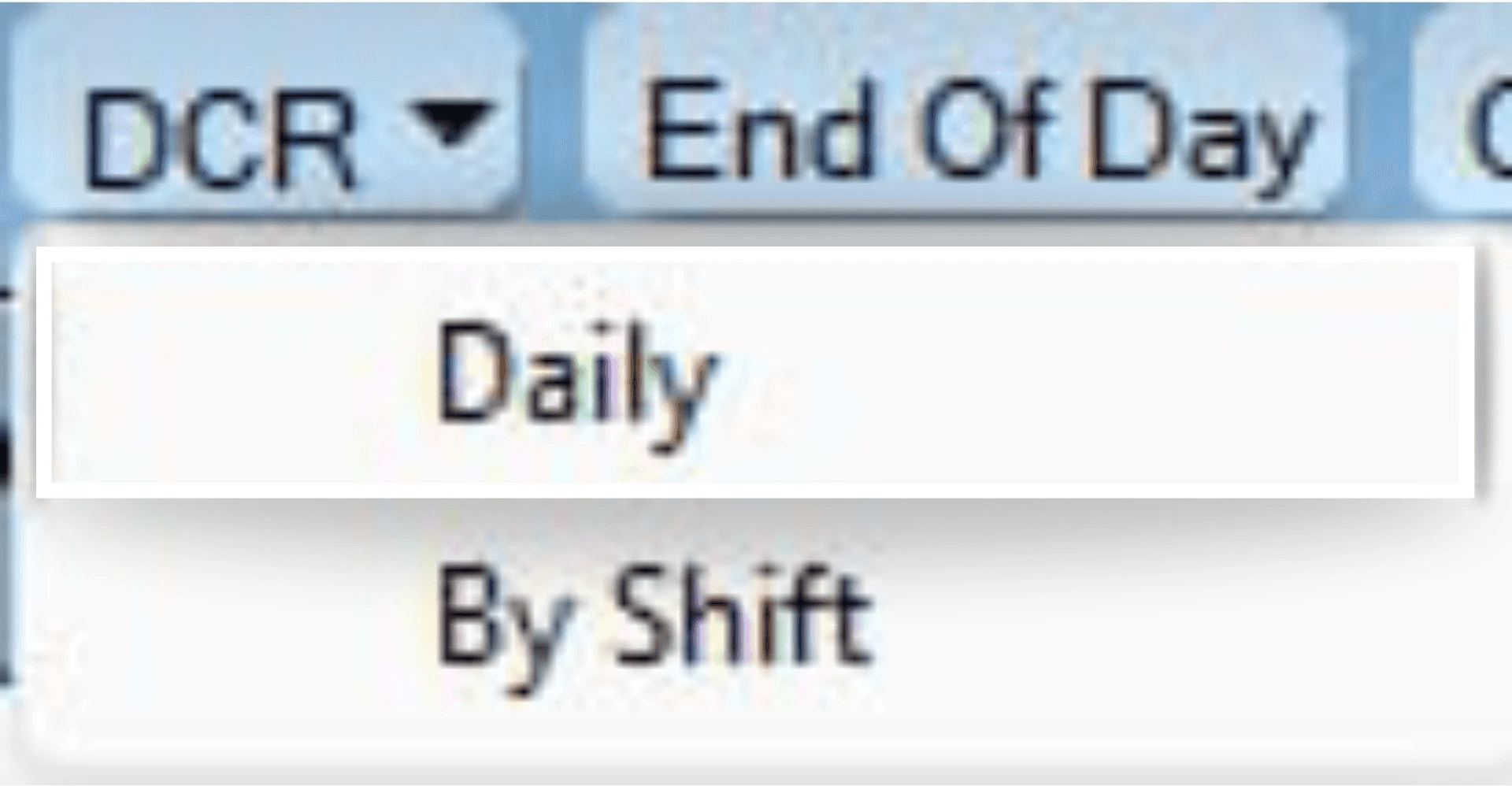
Step 2
Click Daily
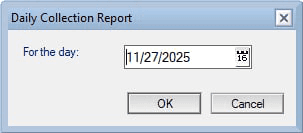
Step 3
Set the date then click OK
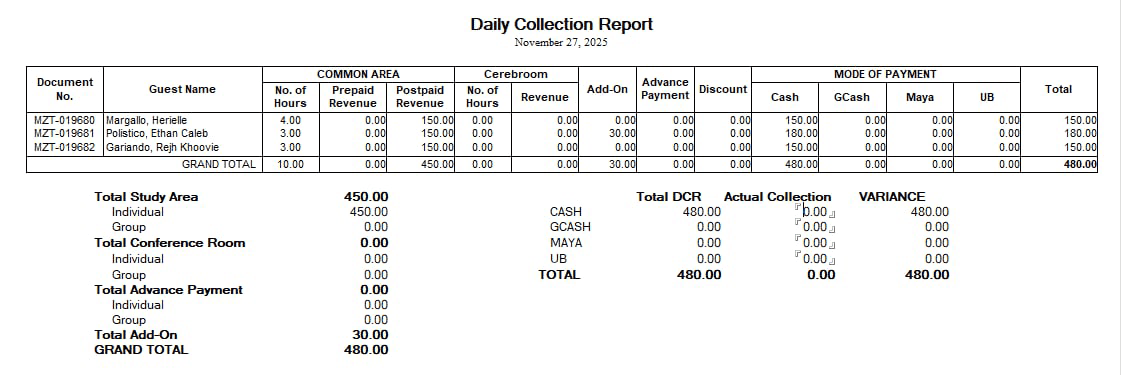
This is where you can see the transactions and check outs for the day.